Published by AutoPosting Pro on September 8, 2026. This is a practical queue-management guide, not a claim of Meta approval or a guaranteed safe posting rate. Meta’s listing-limit help required sign-in during our review, so we do not repeat an unverified numerical quota.
The short answer: automate preparation, and respect the account’s actual limits
You can reduce repetitive work without treating the entire dealership inventory as today’s posting target. Prepare accurate vehicle records, captions and galleries; review a manageable queue; and stop when Facebook shows a restriction or an unexpected result. A vendor’s advertised daily posting allowance is a software-plan limit, not proof that Facebook permits that volume on your account.
Start with Meta’s current Marketplace listing-limit help while signed in. Check which category, total and reset period apply. We could not verify its current body without sign-in during this review. That does not mean Meta has no published limits; it means this page should not substitute a guessed daily number for the current rule.
Separate three different numbers
- Inventory capacity: the number of vehicle records your software stores. It is not a publishing allowance.
- Software allowance: a vendor’s daily or monthly posting cap. It can be more restrictive than the account’s available controls, but it cannot authorize more than Facebook allows.
- Facebook’s current limits: check the notice for the vehicle category, total account activity and the specified period. Do not assume every limit is daily.
For example, a tool can hold your whole lot while permitting only a smaller posting queue. If Facebook shows less available capacity—or a restriction—use that stricter boundary. If the limit or reset is unclear, pause and consult Facebook’s help instead of testing how many attempts it will accept.
Plan a queue you can inspect
- Reconcile before scheduling. Review existing live listings and available inventory. Remove sold vehicles from the proposed queue and avoid recreating an already-published car.
- Prepare the record first. Verify price, mileage, VIN, description and that vehicle’s gallery. Fix missing source data before it reaches Facebook.
- Check the active account. Sign in to Facebook in this Chrome profile. Confirm Marketplace is available and inspect any listing-limit or account notice.
- Choose a reviewable subset. Select only vehicles you can inspect and support with timely buyer follow-up. A smaller queue is an operational choice, not a promise of immunity from flags.
- Track outcomes, not just attempts. Distinguish queued, completed, failed and uncertain items. Save the resulting listing link when available.
- Pause before retrying. On a restriction or unclear completion, inspect the account and live listings. Do not assume a timeout means nothing was posted.
Keep a simple posting record
A useful record has five fields: vehicle identifier, intended Facebook account, action attempted, result or listing link, and next review step. You can maintain it in your existing workflow; it does not require another public listing or a new account.
This is especially useful when you post manually as well as with software. The extension may not know about every action taken elsewhere. A local queue counter alone cannot prove the account’s remaining Meta allowance.
What to do when a limit or block appears
Stop the queue. Read the exact message and any timing or review instruction Facebook provides. A quantity-limit notice, an unavailable Marketplace account and a rejected individual listing need different responses. If the issue is the listing itself, use the listing-removal checklist. If the period is unclear, do not promise your team that a midnight retry will work.
Deleting and reposting, changing the category, rotating accounts or using misleading identities should not be treated as quota-reset strategies. Nor does slowing down make prohibited or inaccurate content acceptable. Keep your workflow consistent with the Commerce Policies and the controls Facebook actually exposes.
Where AutoPosting Pro helps
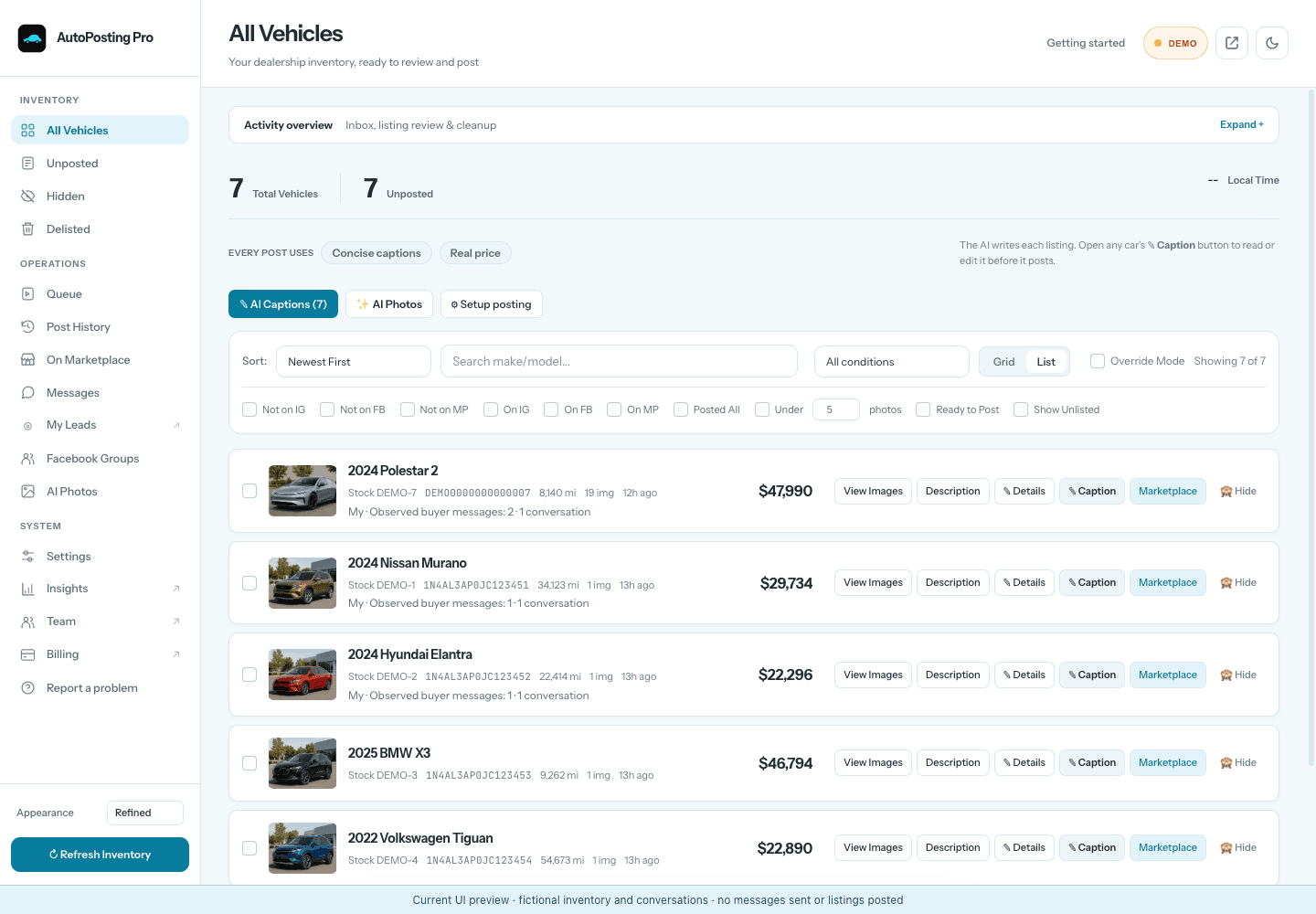
AutoPosting Pro brings dealership inventory into Chrome, prepares editable AI captions and lets the salesperson review photos and a visible Marketplace queue. You keep using Facebook signed into that Chrome profile; no Facebook password is given to AutoPosting Pro. Your computer and Chrome must remain online for posting.
Those tools reduce repeated preparation, but do not measure or override every Meta limit. Review the result, pause when necessary and keep the inventory current. See the pre-publication accuracy checklist and the software buying guide for the rest of the workflow.
Common questions
How many cars can I safely post to Facebook Marketplace per day?
This guide does not establish a universal safe daily number. Check Meta's current listing-limit help and the notice in your own account, including the category and reset period. A posting tool's daily allowance is not Meta's permission, and staying below a number does not guarantee acceptance.
Does a daily software cap cover monthly or category limits?
Not necessarily. A daily queue setting, a vehicle-category limit and a total-account limit are different constraints. Check the period and scope stated by Facebook before scheduling. Do not assume the allowance resets at midnight or that deleting a listing restores it.
Should I keep retrying when Facebook says I have reached a limit?
No. Pause the posting queue, save the notice and follow Facebook's instructions. Check whether any attempted listing actually went live before retrying it. Do not switch accounts, categories or identities to work around the restriction.
Does AutoPosting Pro's unlimited inventory include unlimited accepted posts?
No. Unlimited inventory means the number of vehicle records the plan can hold. Facebook controls access and accepted listings. AutoPosting Pro provides a visible queue in your signed-in Chrome profile; it does not grant additional Facebook posting capacity.