Published by AutoPosting Pro on September 8, 2026. This checklist helps identify avoidable listing mistakes. It is not a guarantee against flags, a legal opinion or evidence that Meta approves a third-party posting tool.
You cannot guarantee no flags—but you can remove avoidable mistakes
Use accurate vehicle details, the correct car’s photos, a truthful description of the sale and a reviewed posting workflow. Check Marketplace access in the account you actually use, follow the notices Facebook provides and keep sold inventory current. No extension can promise that an account will never be restricted or that every listing will be accepted.
Start with Meta’s Commerce Policies and Community Standards. Some Help Center pages require sign-in, and account controls can differ. Treat Meta’s current policy and your account’s notice as authoritative, rather than a vendor’s “ban-free” claim.
1. Confirm the account and selling flow are available to you
Having software, a dealership website or permission to use the inventory does not itself create Marketplace eligibility. Check the account and listing form before queueing vehicles. Do not misrepresent your identity or use someone else’s account to get around a restriction.
Meta’s July 2026 announcement described exploring small-business listing access and introduced Seller. It was not a statement that every dealership, account or location had the same selling eligibility. Check the current options available to you; see our Seller app guide for context.
2. Inspect the exact vehicle—not just the inventory count
- Identity: match VIN or stock identifier, year, make, model and trim with the source record. Do not combine two similar vehicles.
- Price: enter the genuine asking price in the appropriate field. Do not substitute a down payment or monthly payment for the total asking price.
- Mileage: preserve the value and distance unit; do not confuse miles and kilometers or use a missing value as zero.
- Condition and equipment: check AI-generated copy against published facts. Remove unsupported claims rather than guessing.
- Availability: confirm the car is still available and review existing listings before creating another one.
These are our recommended accuracy checks, not a reconstruction of Facebook’s enforcement algorithm. The inventory QA guide explains how to check missing vehicles and mixed galleries.
3. Review photos without disguising the sale
Use photos of the exact unit. Exclude stock art, unrelated thumbnails and images from another vehicle’s gallery. Keep enough original views for a buyer to understand what is being offered.
With permission, AutoPosting Pro Studio can help clean promotional text or change a background, but every AI edit needs comparison with the original. Reject changes to damage, paint, wheels, trim or other identifying details. A generated home or driveway is not evidence that a private owner is selling the car or that the vehicle is located there.
Be clear about your role as the salesperson. Cleaning up a banner is a presentation choice, not a reason to hide dealership involvement or make unsupported financing promises. See the vehicle photo checklist.
4. Review the queue and the result
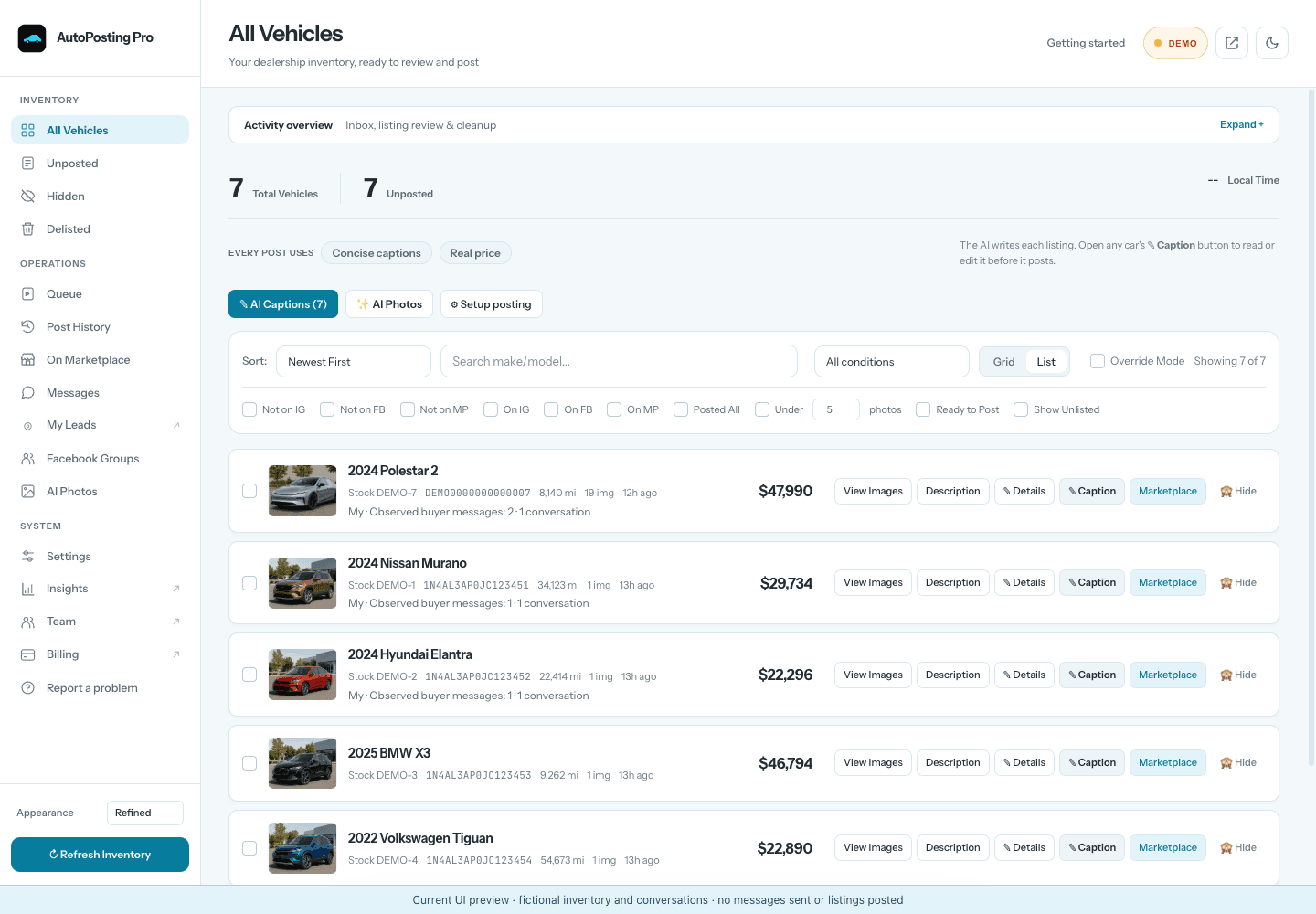
Sign in to Facebook in this Chrome profile. In AutoPosting Pro, review the vehicle, caption and photos before moving through the visible Marketplace queue. Check the account, final vehicle fields and result Facebook shows. A prepared form, a queued job and an accepted live listing are different outcomes.
On an unexpected screen, unclear completion or restriction, stop and inspect it before retrying. A delay or a smaller batch is not a safety guarantee. For category and timing questions, use the posting-limits guide.
5. Keep the listing true after publication
Review price changes and sold status. Match the exact Marketplace listing before changing it. AutoPosting Pro’s auto-renew renews every listing Facebook offers to renew, except sold cars. Its delist control prefers a saved listing link but can fall back to title matching; similar titles can be ambiguous, and Facebook must expose the relevant action. Review the target and result instead of assuming a click completed the job.
On Studio, AI replies answer buyers automatically by default from the car’s real details and your playbook. They can confirm availability and book a visit within your saved hours, but they won’t negotiate price or trade value or promise financing approval over chat. If you want to approve each reply, switch to drafts mode; to handle a buyer yourself, press Take over.
If you are already flagged, use the notice—not another workaround
Save the reason Facebook shows, check the relevant current rule and correct any identified issue. Use its available review process when appropriate. Do not repeatedly repost or change accounts to avoid the restriction. The separate listing-removed guide is for that recovery step.
Common questions
Can a posting tool guarantee I will not get flagged on Facebook Marketplace?
No. Facebook controls Marketplace eligibility, listing acceptance and enforcement. Accurate vehicle details, review controls and current inventory are useful practices, but they do not guarantee a listing will remain live or an account unrestricted.
Should I hide that I am selling a dealership's vehicle?
No. Describe your role and the vehicle accurately. Cleaner promotional photos are not a reason to imply a dealership sale is a private-owner sale. Do not use an AI-generated driveway as evidence of the car's actual location or ownership.
Can AI photos or captions create listing problems?
They can introduce inaccuracies. Compare captions with the source vehicle record and photos with the original. Reject invented equipment, price claims, altered damage, changed wheels or misleading locations. A polished result is not proof that it is accurate or accepted by Facebook.
What should I do if Facebook rejects a vehicle listing?
Pause and read the stated reason. Check the current policies, correct factual or policy issues and use the review option Facebook offers if you believe the decision is wrong. Repeatedly reposting the same rejected content is not a substitute for resolving the notice.